Microphone Not Working
Recording doesn't capture audio or the waveform appears flat.
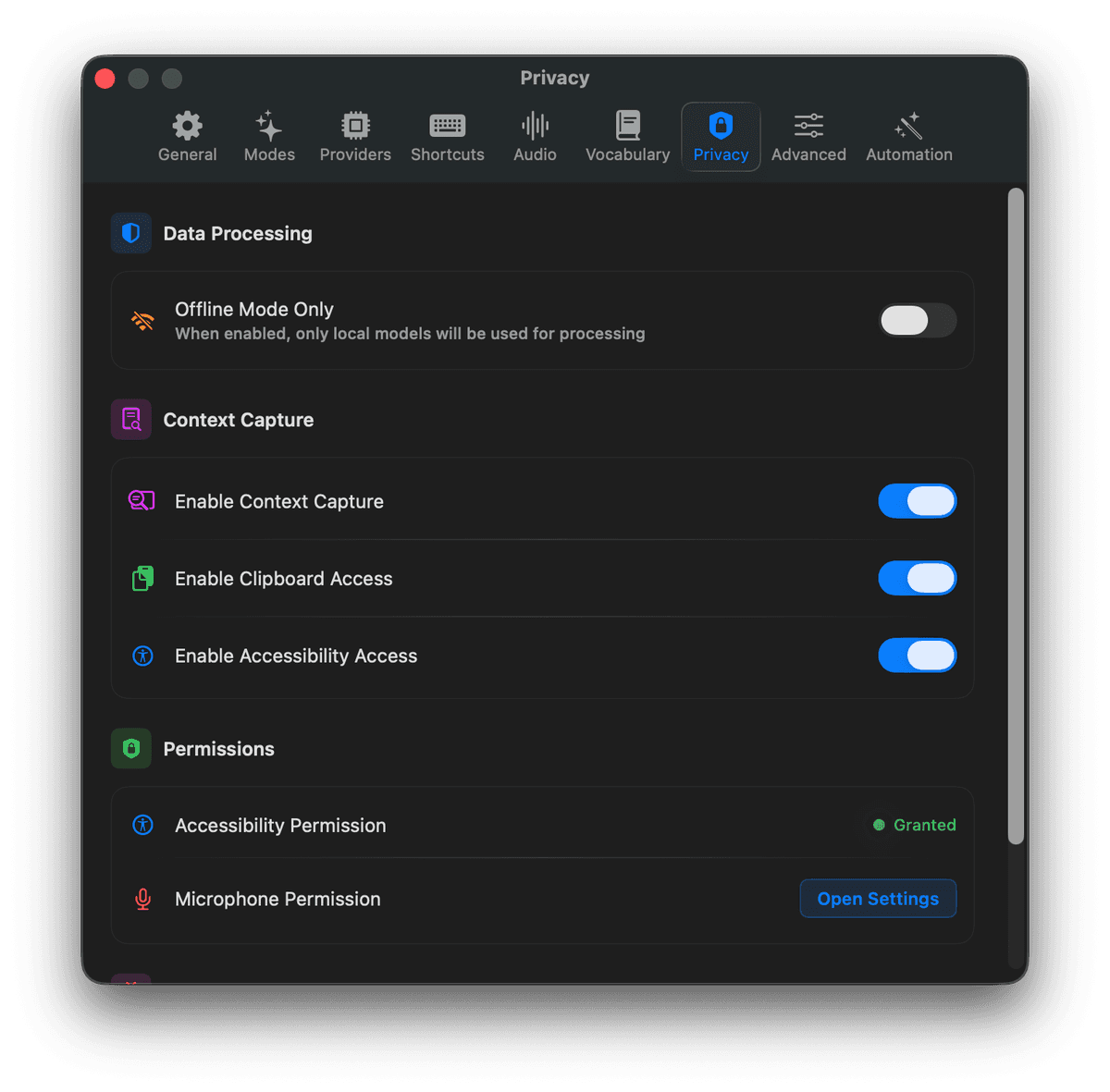
- Check microphone permission in System Settings → Privacy & Security → Microphone
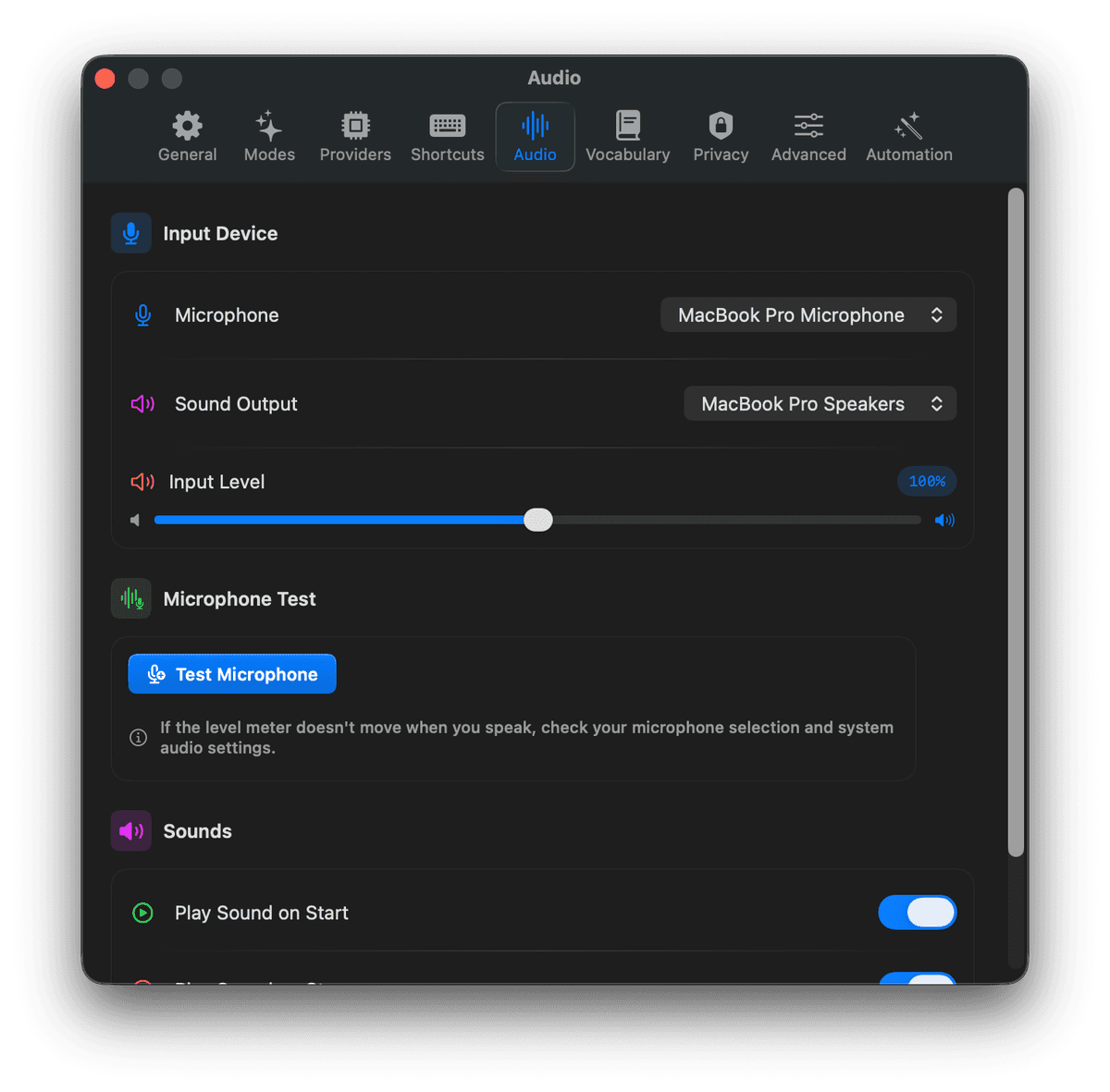
- Verify the correct input device is selected in TalkTyper Settings → Audio
- Test your microphone with the built-in test function in Audio settings
- Try unplugging and reconnecting external microphones
Global Hotkey Not Responding
Pressing the configured hotkey doesn't start recording.
- Verify Accessibility permission is granted in System Settings → Privacy & Security → Accessibility
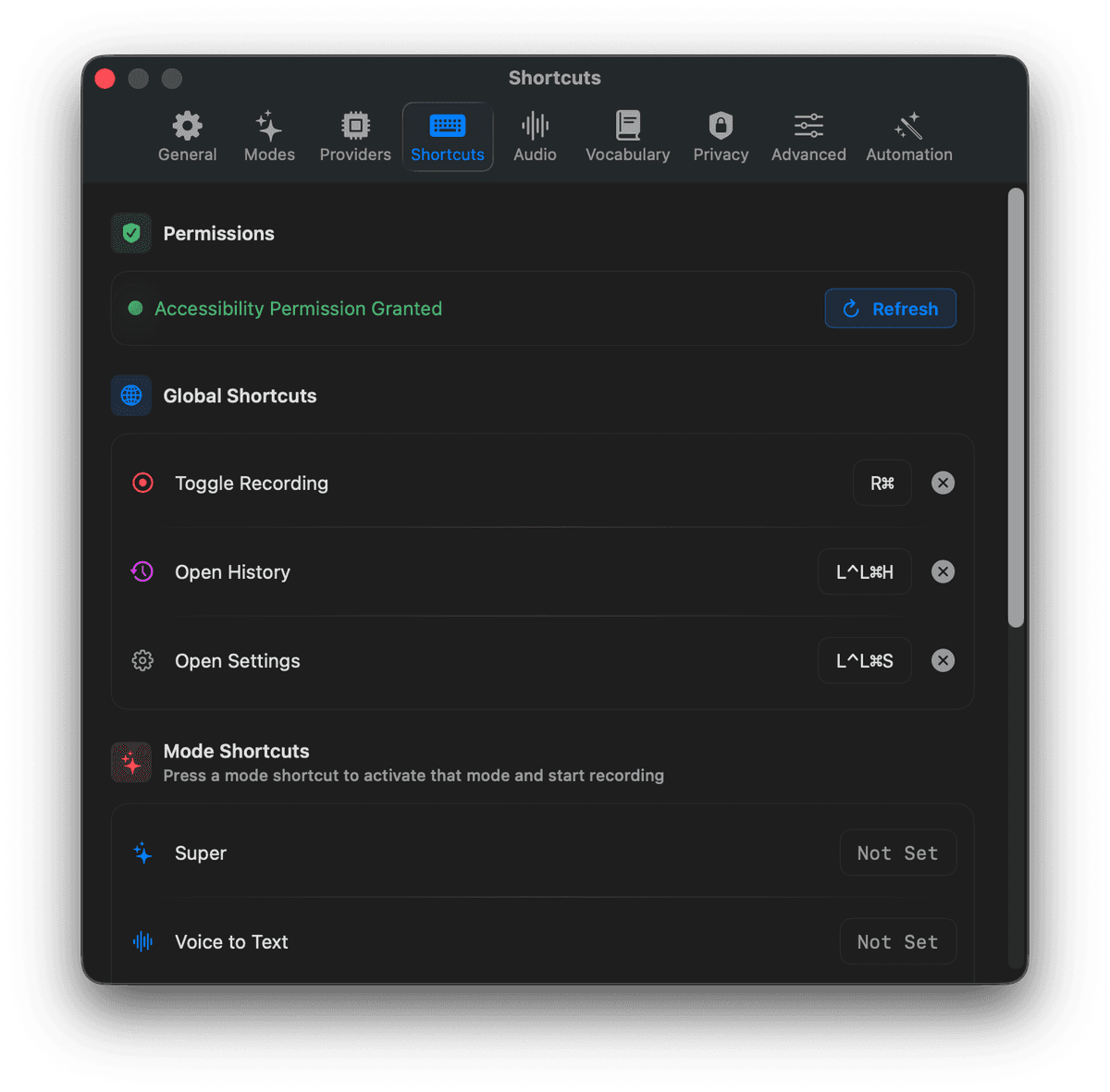
- Check for conflicts with other applications using the same hotkey
- Try setting a different hotkey combination in Settings → Shortcuts
- Restart TalkTyper after granting permissions
Text Not Auto-Inserting
Transcription works but text doesn't appear in the target application.
- Ensure Accessibility permissions are enabled for TalkTyper
- Grant Automation permission in System Settings → Privacy & Security → Automation
- Some applications may block automated typing - try copying to clipboard instead
- Check if "Auto-paste" is enabled in Settings → General
Slow Transcription
Processing takes longer than expected.
- Local Whisper processing depends on your Mac's hardware - Apple Silicon is recommended
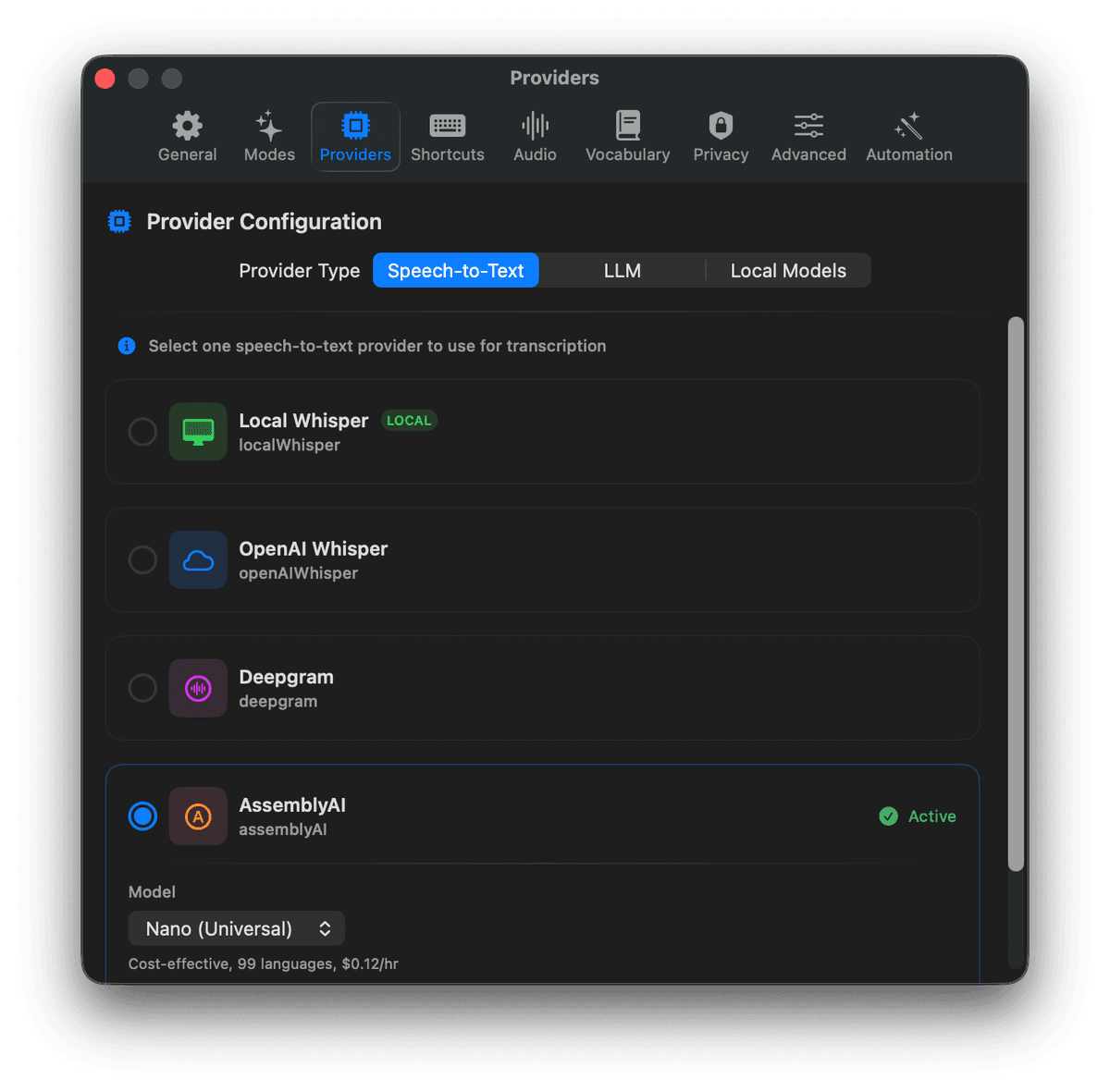
- Try a smaller Whisper model (e.g., Tiny or Base) in Provider settings
- For faster results, consider using a cloud STT provider
- Close resource-intensive applications while transcribing
API Key Errors
Cloud provider returns authentication or rate limit errors.
- Verify your API key is correct and has not expired
- Check that your API key has the required permissions for the service
- Ensure you haven't exceeded your API rate limits or quota
- Try regenerating your API key from the provider's dashboard